✓ No signup✓ No installation✓ No subscription✓ Images stay on your device
Try a Photoshop online free alternative
Click Open Editor to use PhotoCraft in a full-window workspace on this page. Choose File → Open to select a photo or PSD from your device, or create a new document. Work with layers, masks, brushes and color adjustments, then download your result using Save or Export.
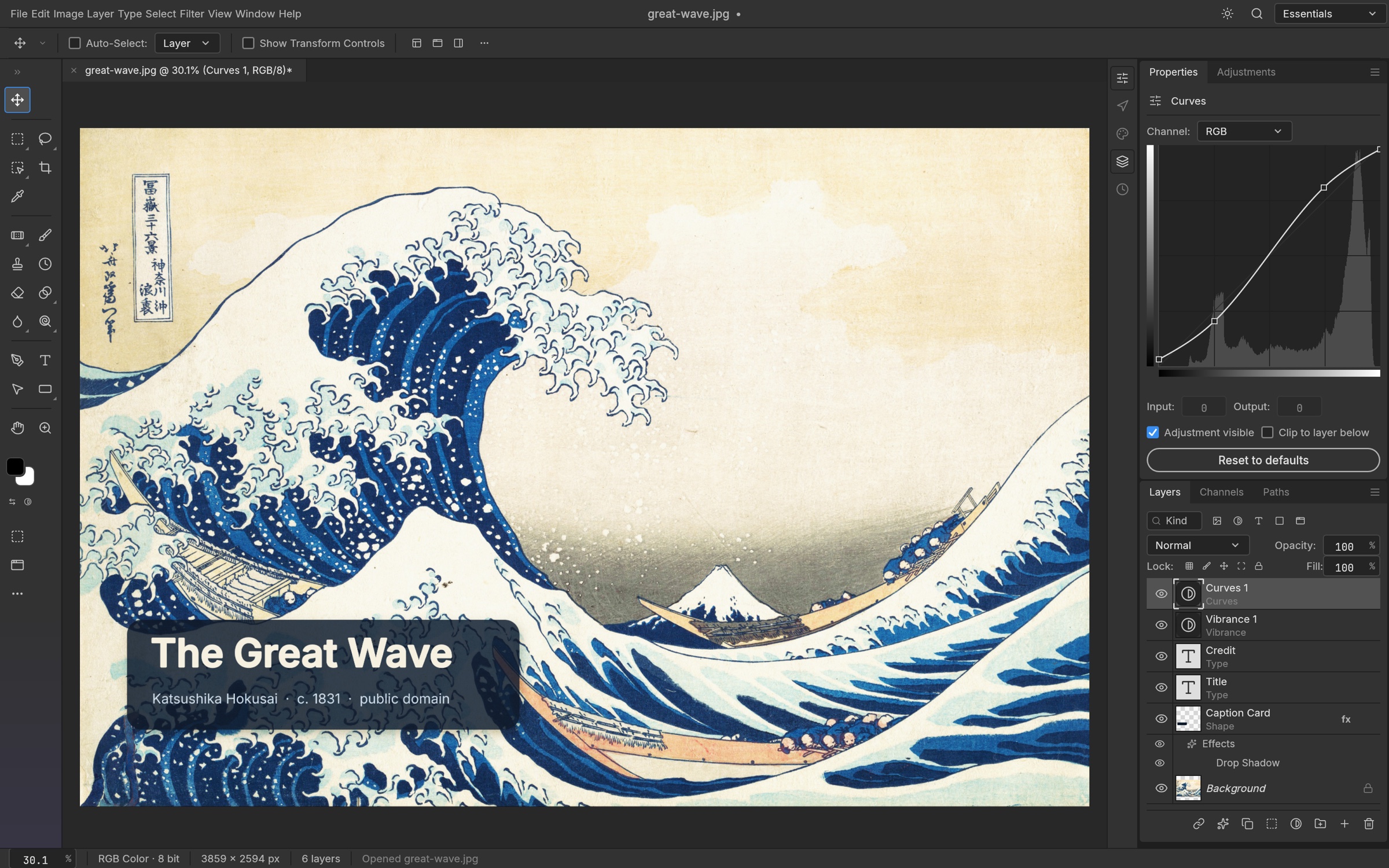
Open Editor ↗This is an editor preview. Click Open Editor to launch the live photo editor. Artwork: The Great Wave off Kanagawa, Katsushika Hokusai, public domain.
PhotoCraft
Opening PhotoCraft…
PhotoCraft workspace
Direct editor link
Bookmark this page to open PhotoCraft directly.
Save or export your files before closing this tab.
Hover, focus or tap the PhotoCraft logo to reveal controls for the home page and full screen. Drag it to either edge to move it. Alt and arrow keys also move it.
The live editor loads when you open it. Use the edge controls for Full screen or to return to this page. Save or export before closing the tab. You can also open the standalone editor.
A canvas, without the commitment.PSD · PNG · JPEG · WEBP · SVG
01 / THE TOOLKIT
Free online photo editing tools
Open a photo or PSD and get to work. Keep your layers, masks and creative control.
BUILD IT UP
Edit photos with layers and masks
Build your image from separate layers instead of changing everything at once. Combine photos, add text and use masks to control which parts of a layer remain visible. Layers make it easier to revise a composition, move an element or adjust one part of an image without rebuilding the entire design.
FIND YOUR TONE
Adjust colors in your browser
Use Curves, Levels and Hue/Saturation to refine brightness, contrast and color. Adjustment layers let you revisit supported changes while keeping your source layer intact. For a first edit, make one adjustment at a time, compare the result with the original and export a copy when you are satisfied.
.psdYOUR LAYERS, INCLUDED
PICK UP WHERE YOU LEFT OFF
Open Photoshop PSD files online
Open a layered PSD in PhotoCraft when you need to inspect a design or make a quick change without installing another application. Check the layers, text, masks and effects before editing. PSD support is still evolving, so keep the original document and verify the exported result before sharing it.
Click Open Editor to launch PhotoCraft in a full-window workspace on this page. Once it is ready, choose File → Open and select a file from your device. For your first session, use a duplicate of an image rather than your only copy. If you open a PSD, inspect the canvas and layer panel before making changes so you can spot any compatibility differences.
02
Make a simple edit
Select the layer you want to change. Crop the image, add text or adjust its color using the tools available in PhotoCraft. Keep new elements on separate layers where possible. Use Undo if a result is not what you expected, and compare your edit with the original before moving to the next change.
03
Export and check your result
Use Save or Export to download your work to your device. Choose an image format for a finished picture or a supported editable format when you need to continue working later. Open the downloaded file and check its appearance. Save regularly: this browser build does not provide autosave or crash recovery.
For the best experience, use a current desktop browser with WebGPU or WebGL2. The first editor launch downloads about 11 MB of compressed app files.
03 / PSD WORKFLOWS
Open and edit PSD files online
A PSD is more than a finished image: it can contain layers, text, masks and effects that make a design editable. PhotoCraft lets you open supported PSD documents in your browser and work with the elements it recognizes. This can help with a quick text change, a layer adjustment or an image export.
Before editing, compare the document with a trusted preview if one is available. Pay particular attention to fonts, layer effects and complex compositions. Missing fonts or unsupported features can change how a document looks. Keep the original PSD, edit a copy and check the downloaded result. Opening a file successfully does not guarantee that every Photoshop feature will be preserved.
04 / EVERYDAY EDITS
When a free online photo editor is useful
Quick photo changes
Crop an image, add text or adjust its color without installing software. Start with a small task, check the result and export a separate copy.
Simple layered designs
Combine a background photo, a text layer and other visual elements in one document. Keeping elements separate makes it easier to change their position or appearance as the design develops.
Learning layers and masks
Practice on a copy of a photo to understand selections, masks and adjustment layers. PhotoCraft provides a familiar editing workflow, while its early-alpha status means some tools and behaviors are still developing.
05 / KNOW YOUR CANVAS
PhotoCraft vs Photoshop: features and limits
Great for exploring and everyday edits. Still growing toward professional workflows.
PhotoCraft is a free Photoshop alternative for browser-based photo editing and supported PSD workflows. It includes layers, masks, brushes and image adjustments, but it is still in early alpha. Adobe Photoshop remains the more established option for demanding professional workflows. Use the comparison below to decide whether PhotoCraft fits your task, and test important documents before making it part of your regular process.
PhotoCraft capabilities compared with Adobe Photoshop
Workflow
PhotoCraft
Adobe Photoshop
Cost of this browser editor
Free, no account required
Commercial subscription options
Layers, masks & adjustments
Available; depth varies by tool
Established professional workflows
PSD editing
Supported, with compatibility limits
Native Photoshop document format
Generative AI / Generative Fill
Not available in this deployment
Available in supported plans and versions
Photoshop plug-ins
No Photoshop plug-in compatibility
Photoshop plug-in ecosystem
Product maturity
Early alpha — save often
Mature commercial product
PhotoCraft is an independent open-source project. This site is not affiliated with Adobe or endorsed by the PhotoCraft / ArtCraft team. Adobe Photoshop is a trademark of Adobe.
06 / A FEW GOOD QUESTIONS
Free online photo editor FAQ
Can I use Photoshop online for free?
You can use PhotoCraft here as a free alternative to Photoshop for supported photo and PSD editing tasks. It runs in your browser without an account or subscription. PhotoCraft is independent open-source software; this website does not provide Adobe Photoshop or an Adobe subscription.
What does “free” include?
This site provides access to the PhotoCraft browser editor without a subscription. You can use its available editing tools and download your work. It is not a time-limited trial. The editor is still in early alpha, so free access does not mean every Photoshop feature is available. PhotoCraft’s code is licensed under MIT or Apache 2.0; see our open-source notices for third-party licenses.
Do I need to sign up or install anything?
No. Click Open Editor to launch PhotoCraft in a full-window workspace on this page. Bookmark the editor link to open the workspace directly next time. No account or software installation is required. Use a current desktop browser with WebGPU or WebGL2 for the best experience.
Can I open and edit PSD files online?
Yes. Use File → Open in PhotoCraft to choose a PSD from your device, edit its layers and export your work. PhotoCraft is in early alpha, so complex Photoshop documents may not reproduce every feature. Keep the original file and check your exported result.
Does PhotoCraft include Photoshop Generative Fill?
No. This deployment does not include Adobe Generative Fill or a generative AI service. You can use PhotoCraft’s available tools for layers, masks, brushes and image adjustments. If your task depends on generative AI or Photoshop plug-ins, check those requirements before choosing this editor.
Are my images uploaded?
Editing and image processing run on your device. The site does not upload your image files or store your documents on a server. Preferences may be stored in your browser. Save or export your work before closing the tab.
Can it replace Photoshop?
PhotoCraft is in early alpha. It offers layers, masks, brushes and image adjustments, but is not yet a complete replacement for professional Photoshop workflows. Generative AI, typography depth, plug-in support and file compatibility have limitations. Try it on copies of your files.
The editor is not starting. What can I do?
The initial app download can take a moment. Try a current desktop browser and enable hardware acceleration. You can also try the WebGL fallback or CPU canvas mode. Save your work before reloading.
Where are the source code, downloads and community?