
AI Photoshop Clone and PhotoCraft
This AI Photoshop Clone guide focuses on PhotoCraft, an independent Photoshop-style editor. The upstream project describes PhotoCraft as an open-source, clean-room reimplementation of Photoshop, written in Rust. Our browser edition uses its official v0.8.2 release. PhotoCraft is the software's name; “AI Photoshop Clone” describes the topic explored here.
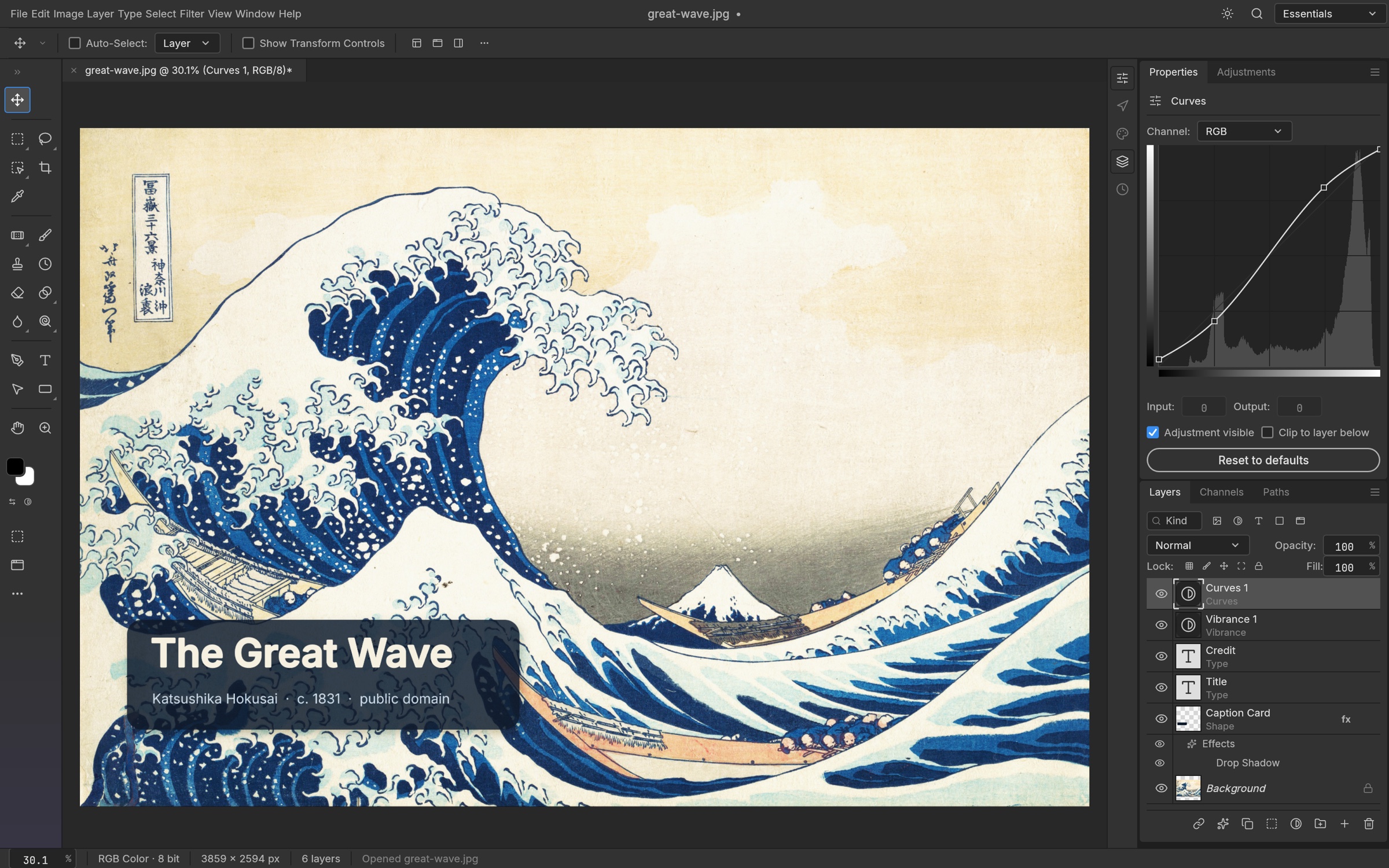
PhotoCraft gives you menus, a canvas, a layer panel and editing tools. You open your own image and decide what to change. Layers, masks, brushes and adjustments support familiar photo-editing tasks. The browser build is early alpha, so a familiar interface does not guarantee full compatibility with a professional Photoshop workflow.
Check the AI part of your task. This deployment has no generative AI service and does not include Adobe Generative Fill. If you need prompt-based image generation or AI-generated photo variations, those capabilities are not provided here.
Choose a small, useful first edit
The quickest way to assess an editor is to finish a task you already understand. Use a copy of a photo, keep the original elsewhere and make one visible change. An ordinary PNG or JPEG is a simpler starting point than a large PSD with many effects.
| Your task | What to try | What to check |
|---|---|---|
| Prepare a photo | Crop the canvas or make a color adjustment. | The final framing and image dimensions. |
| Add a caption | Create a separate text layer. | Font appearance, readability and position. |
| Explore a layered design | Inspect layers and toggle their visibility. | Which layer controls each visible element. |
| Export an image | Use File → Export → Export As and choose a supported format. | The downloaded file opens and looks as expected. |
Our AI Photoshop Clone getting-started tutorial walks through opening a file, adding a caption and downloading the result. It also explains full screen and the movable logo controls, so you can use the whole workspace without losing your route back to the homepage.
Use PSD files with a compatibility check
PhotoCraft can open and save layered PSD documents, but PSD compatibility is a separate question from whether a file opens. A complex document may depend on fonts, effects or other behavior that differs between applications. Treat your first open as an inspection step.
- Keep the original PSD and use a working copy.
- Compare the canvas with a trusted preview, if you have one.
- Inspect text, masks, layer visibility and important effects.
- Make a small edit and save a separate file.
- Reopen the downloaded result and check the appearance and layers you need.
For a finished image, an exported PNG or JPEG can be easier to review. Keep a supported editable document as well if you plan to revise the layers later. A flattened image export and a layered project serve different purposes.
What “free and open source” gives you
The editor hosted here is free to use without an account or subscription. Image editing runs on your device; this deployment provides no image-upload endpoint or server-side document storage. Save or export files to your device before you close or reload the tab.
PhotoCraft's own code is available under MIT or Apache 2.0, with separate notices for third-party material. You can read the upstream source and documentation or consult our open-source notices. Desktop downloads and release notes are available on the project's official v0.8.2 release page.
Open source also makes the project's implementation visible. It does not remove early-alpha limitations or turn this deployment into an Adobe service. For important work, test the tools and file formats your task requires and keep a separate backup.
PhotoCraft vs Photoshop: compare your workflow
Use this comparison to identify what you need to test. PhotoCraft provides an independent editing workflow with a familiar interface. Adobe Photoshop is the original commercial application; a similar layout does not mean every tool or document behaves identically.
| Requirement | PhotoCraft here | Adobe Photoshop |
|---|---|---|
| Access | Free browser edition; no account required. | Adobe's commercial product and licensing. |
| Editing basics | Layers, masks, brushes, text and adjustments; early alpha. | Established Photoshop editing workflows. |
| PSD documents | Open, edit and save supported documents; verify compatibility. | Photoshop's own document format. |
| Photoshop plug-ins | No Photoshop plug-in compatibility in this deployment. | Photoshop's plug-in ecosystem. |
| Generative Fill | No Adobe Generative Fill or generative AI service here. | Check Adobe's current product and plan for the service you need. |
For a captioned image or a basic layered composition, try the browser workflow from start to export. For a document that must preserve a specific Photoshop effect, font or plug-in result, compare the saved file in the application used by the people receiving it.
AI Photoshop Clone questions
Is AI Photoshop Clone the official name of PhotoCraft?
No. PhotoCraft is the upstream project's name. This page uses AI Photoshop Clone as the topic of a guide to its Photoshop-style editing workflow. This website is independently hosted and is not affiliated with Adobe or endorsed by the PhotoCraft / ArtCraft team.
Can I use it without downloading a desktop app?
Yes. Visit the PhotoCraft homepage and choose Open Editor. The browser downloads the editor's app files when it launches; you do not need a desktop installation or an account. A current desktop browser with WebGPU or WebGL2 is recommended.
Does it generate or clone photos with AI?
This browser deployment has no generative photo service. Its available workflow is editing your own images with tools such as layers, masks, brushes and adjustments. Check the specific feature you need instead of relying on the word “AI.”
Where should I save my work?
Use Save or Export in the editor to download files to your device. The browser build does not provide autosave or crash recovery. Check the downloaded file before you close the tab, and retain the source image or PSD.
Where can I find the developers and community?
The upstream GitHub repository contains source code, documentation and project discussions. The project also links to the ArtCraft community on Discord. For desktop versions, use the official release page linked above. These are upstream resources; this independent guide is not the project's official website.
Start with an image you can experiment on
Pick a small photo, choose one change and finish the whole workflow through export. This gives you a clearer answer than a feature list: you will know whether the browser editor fits your task and which parts need more practice.